A CRM task, assigned manually or during a business process, can be completed directly from the app item page for which it was assigned, or from the Tasks workspace.
Each task type has its own set of buttons, allowing you to perform a specific action, such as marking the task as completed or closing the associated deal. The system administrator can modify the preset tasks: add or remove buttons, specify additional fields, etc. Custom CRM task types with any settings can also be added to the system.
In this article, we'll cover working with default preset CRM task types.
Сall task
There are four default buttons for managing a phone call:
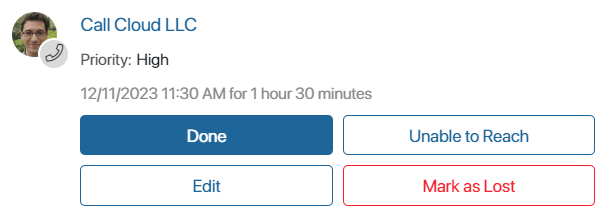
- Done. If the call was successful, click this button to complete the task. Write a comment that will appear in the activity stream of the app item.
- Change. Change the task’s name, reassign it, or reschedule the call. If you reassign the task, the new responsible user will get a notification in their #Activity stream. A comment specifying what changes were made to the task will appear in the app item’s activity stream.
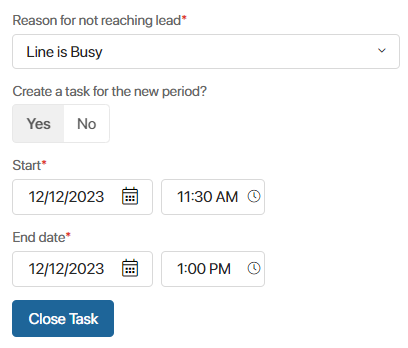
- Unable to Reach. Select the reason why it’s impossible to contact the client. It will appear in the item’s activity stream and the task will be closed. You can create a new task with the same details by specifying Yes in the Create a task for the new period? field and selecting the new date and time. All information from the current task will be copied into the new one.
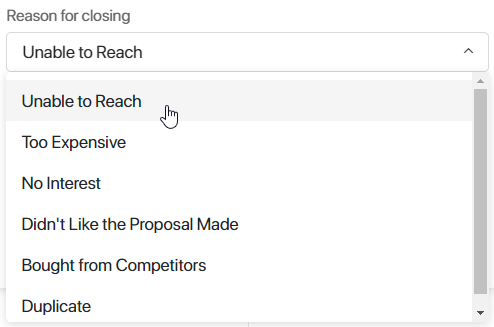
- Mark as Lost. This option is only available for CRM tasks associated with leads and deals. Select the reason why the lead or deal should be marked as lost and leave a comment. The deal status will automatically change to Lost and the lead will be assigned the Unqualified status. In this case, all other CRM tasks scheduled for canceled deals and leads will be completed automatically.
Meeting and webinar tasks
Working with these tasks is similar. By default, they have two buttons: Done and Change.
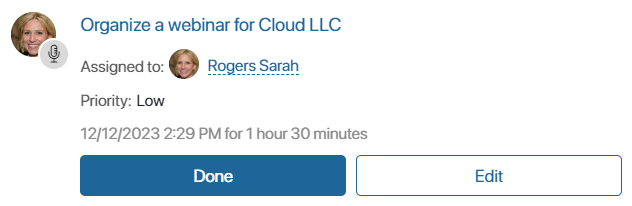
When you edit a meeting or a webinar, you can rename, reassign, or reschedule it, as well as edit its participants list.
Email task
The following default actions are available for working with emails:
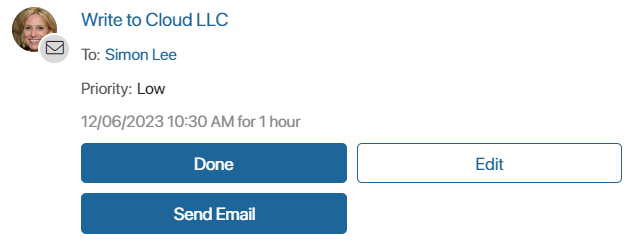
- Completed. Close the task if the email has been successfully sent. Enter a comment that will be saved in the associated activity stream of the app item for which the task is set.
- Edit. Change the details of the task, reassign or reschedule it. When reassigning, the new executor will receive a notification in their #Activity stream. Information about the changes is recorded in the associated activity stream of the app item.
- Send email. Click the button to write an email in the built-in email client. After you send the email, the task is closed automatically. This option is available if the contact to write to is specified in the task’s details, and the current user has connected a personal email account in the Email workspace.