The CTI panel is a tool for making outbound and internal calls directly from the BRIX interface. To handle calls, you no longer need to install a third-party softphone; simply enable the phone panel in the BRIX interface.
This feature is provided by the system administrator if the company uses the Asterisk IP telephony provider.
When setting up telephony, the administrator configures the CTI panel and activates it for employees who handle calls.
Enable the CTI panel in the BRIX interface
After the system administrator sets up the CTI panel for handling calls, enable it in the interface. To do this:
- Go to your profile by clicking your name or avatar in the top-right corner of the screen.
- In the window that opens, turn the switch next to Calls to the active position.
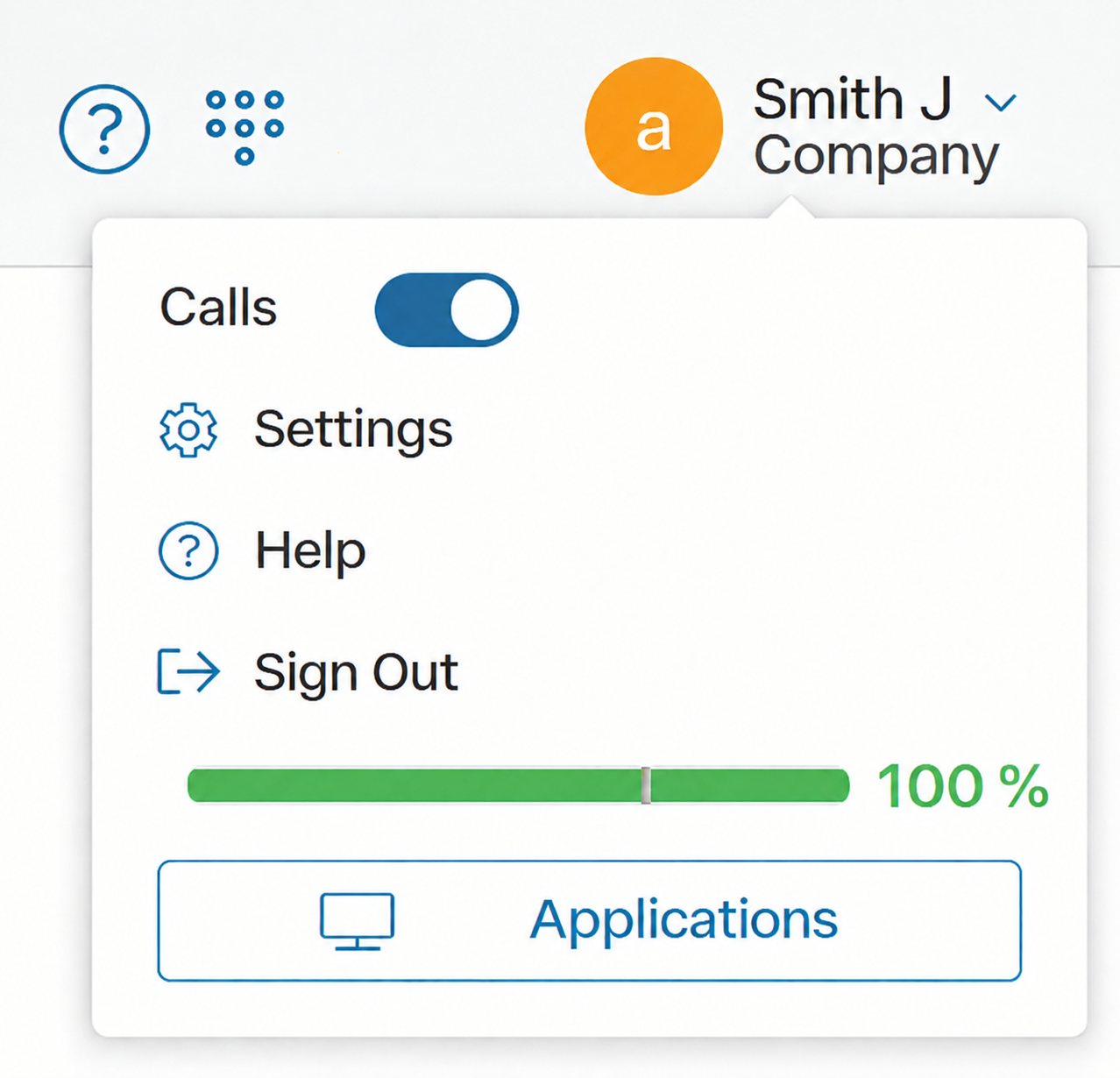
After you enable the CTI panel in your profile, the  icon is displayed in the top-right corner of the system. Click it to open the phone panel and make calls.
If you work with BRIX in multiple browser tabs simultaneously, the CTI panel will be active in each of them. This allows you to switch between tabs without losing call control.
Appearance of the CTI panel
The phone panel is located in the bottom-right corner of the system. It displays:
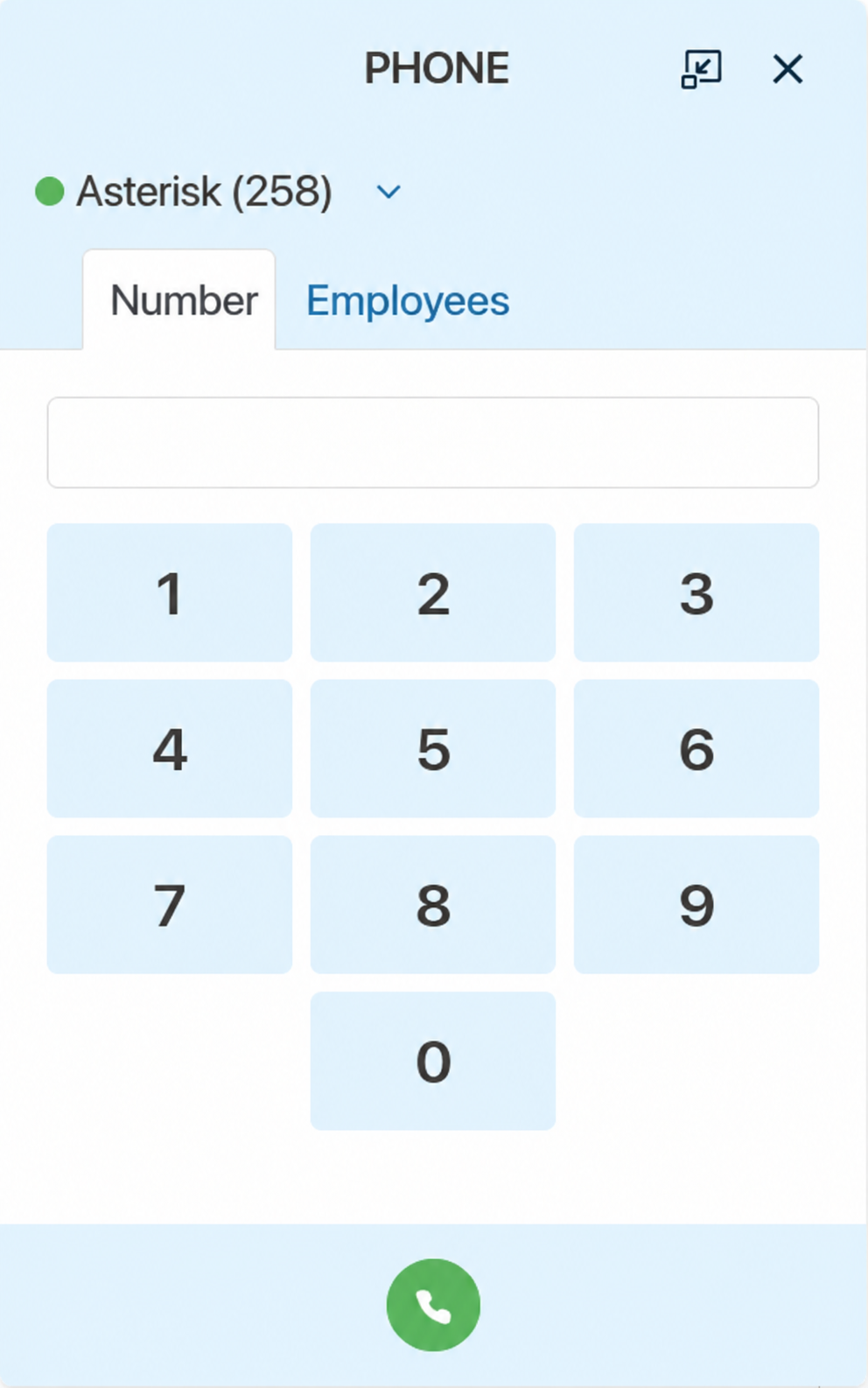
- User status in the CTI panel
Next to the provider name, a color indicator shows your status when handling calls in the CTI panel:
- Green. You are connected to the CTI panel and ready to talk.
- Yellow. A call is in progress.
- Red. The Calls switch is turned off in your profile or a telephony server connection error has occurred.
- Tabs on the CTI panel
Two tabs are available:
- Number. For making outbound calls.
- Employees. Here you can call a colleague on an extension number. Information about such calls is saved in the Telephony > Internal workspace.
Available actions during a call
When using the CTI panel in an incoming or outgoing call card, additional capabilities are added to the existing actions.
When you reassign a call to another employee, you can:
- Transfer the call to a colleague immediately.
- First contact the colleague to consult on the customer's issue. You can also alternate between talking to the customer and the colleague. When switching, the current conversation is automatically placed on hold.
You can also use the panel to enter digits during a call, for example, when you need to enter a specific digit or symbol to connect to the required department.
To learn more about how to do this, see Work with a call.